As part of my downsizing, I’ve looked at the shelves of graphic novels and wondered how I could quickly create a list of them. In case I want to sell them or even give them away, I’d like to be able to hand over a list of what I have so people know what they’re getting, or so a buyer can tell me what they’re most interested in.
Of course, I thought, “There’s an app for that.”
I’m not sure why I spent hours today searching for and trying out apps to scan a book or DVD’s barcode to generate a list quickly and easily. But my intuition said to do it, so I did.
All I wanted was…
All I wanted was an app that I could use to scan the barcodes of books and DVDs, match those barcodes to book and DVD names, and then export the list. And ideally, they’d be easy to use without me puzzling over settings or help pages. (No fear there: only one or two of these apps even had support pages or FAQs, however skimpy.)
My first path was incorrect: I searched for iOS-based barcode scanners and this created a whole morning and afternoon spent reading app reviews, downloading and testing a few apps, and generally just being displeased with the whole exercise. These tend to be consumer-level price-finding apps. The apps tend to be adware, or buggy, or just generally difficult to work with.
After stepping away for a bit, I hit on the second path: look for book cataloging apps, or cataloging apps that could do books and DVDs – and why not CDs, while I’m at it.
After more Googling, I found Libib, which was the answer to my dreams.
Libib did all I wanted…
Libib has two components: 1) a mobile app that can scan barcodes and 2) a website where those entries can be tagged, metadata entered or edited, etc. For personal use, the app and site are free at Standard level; if you’re a small library, there is a Pro level with more admin features.
Libib can show you the entire contents of all the libraries you have created, or only the library you select. Libib offers four types of libraries you can create: Books, Movies, Video Games, and Music. I assume that each library type is associated with its own set of catalogs or custom searches, which improves the speed of the barcode matching.
On the web site, I created two libraries: Graphic Novels and DVDs. I downloaded and logged in to the iOS app on my iPhone. And then I picked a few DVDs for testing.
My tests worked great. The iOS app read barcodes and returned product info as fast as the camera took the picture – and MUCH faster than any of the barcode-scanning apps. Refreshing the web site showed those entries on my DVDs Library page. (That may not sound like a big deal to you, but so many of the apps I tried today lacked such basic competence in design and function that I almost cried with joy to find something simple that simply WORKED AS EXPECTED.)
I eventually found the Export capability: from your account page, select Settings, select the Libraries tab, select Export Library (.csv), and then the library you want to export. I was impressed by the amount of metadata included with the DVDs; and it’s probably possible to customize the metadata further.
What’s to love?
What I love about Libib – the site and the app – is the speed, the cleanness of design, proper Support pages so I can troubleshoot problems myself, and its own general soundness and sanity.
There are social functions that I don’t care at all about and don’t see myself using, but that’s fine. Libib does what I want, as I expect it to, and I am now – at long last – looking forward to cleaning out those shelves of graphic novels.
_One of the nice touches of the Libib interface is the ability to view your library's items in a plain list view, as large icons, or a hybrid view, as shown here, with full description and metadata on the DVDs._
A typical jigsaw puzzle manufacturer uses the same die-cut pattern for many different puzzles. This makes the pieces interchangeable, so I sometimes find that I can combine portions from two or more puzzles to make a surreal “puzzle montage” that the manufacturer never imagined. I take great pleasure in discovering such strange images lying shattered, sometimes for decades, within the cardboard boxes of ordinary mass-produced puzzles.
Great gallery of surreal montages to scroll through!
When I Googled around, I found a fundamentalist site that says “A biblical worldview reveals no room for extraterrestrial life.” So Jesus did not die for aliens who sin, which, you know, good for us.
I remember once reading through descriptions of MBTI personality types. For each type, they included a short catchphrase characteristic of that personality. I identify as INTJ, and the catchphrase for that type was “Well…what did you think would happen?”
I shared this with a friend, also an INTJ, and we both marveled at how this expressed our often unspoken reactions when we would hear other people complain or wonder about this or that event happening to them. For us, what happened to them sounded extremely logical based on the starting point, and why couldn’t you have worked that out for yourself beforehand??
Since discovering this catchphrase, I try to notice when I think it and stop myself saying it out loud. There’s such an “I told you so” superiority vibe to it; even if I don’t say it, I’m sure people can feel it.
Now, when it’s appropriate, I will lay out my expectations for something (a movie, a project, a meeting) before the event starts. Because, anyway, who’s to say I’m right? But at least I’ve said out loud what my personal and emotional logic is laying out before me, imaginary though it may be.
I also try to notice when I am starting a sentence with “At least…” and stop it from passing my lips.
As one would expect, Fry does a marvelous job of it. He’s a lifelong Sherlockian and his love for the series comes out in some of the personal essays he wrote to accompany each book, and also in his narration.
I’ve long been acquainted with the Holmes stories – I’m sure I read the Adventures and Memoirs volumes in my pre-teen years – but they never quite stuck in my mind and I never progressed much farther. I depended on other media (TV, movies, comics) to fill in the gaps.
The whole realm of Sherlockiana on the other hand – the annotated volumes, the encyclopedias, the books about Sherlock – seemed a bit more fun. And, in fact, I think I absorbed most of what I know about the Sherlock Holmes universe that way.
So it’s interesting to hear the stories as an adult. As a kid, I remember really trudging through the long other story inside A Study in Scarlet and wondering why it was there. I can stand those digressions a little better nowadays.
So far, I’ve heard A Study in Scarlet, The Sign of the Four, Adventures, and am about halfway through Memoirs. Here are some stray thoughts I’ve had listening to them:
The most interesting bits of a Holmes story happen before the plot gets started. The description of Sherlock’s world, his habits, his table-talk, and so on, are what I find most interesting because Sherlock is typically the most interesting character. Example: the first few pages of “The Greek Interpreter” where Watson meets Mycroft and learns more of Sherlock’s family history. They do not contribute to the story’s plot or theme, but they color in more of Sherlock’s universe, and that’s fascinating.
Which underlines that it’s Sherlock we’re really interested in, not the stories.
Good lord, but so many of these stories are resolutely undramatic. All tell and no show. This makes the stories feel quite inert despite their sometimes lurid content. “The Engineer’s Thumb,” for example, is a thrilling bit of pulp melodrama as Victor Hatherley finds himself isolated, escapes being killed by a metallic press, and attempts the rescue of a young lady. But we’re not there with him as the action is happening, only being told about it afterward. So I finish the stories feeling rather cool toward them.
The Ian Richardson version of “The Sign of Four” actually improves on the original story in a few respects, particularly the boat-chasing climax and the capture of Jonathan Small. Doyle painted himself a rich canvas but did not take advantage of some of the details to make the stories a little tighter and more thrilling.
The stories typically bring one-off characters onto the stage where they recount long monologues and deep background information on the characters’ life histories, Sherlock is involved to a minimal degree, and then – poof – story’s done. I’m thinking here of “The Yellow Face” and “The Copper Beeches”: intriguing setups, but Holmes is a secondary player on those stages. Also, these monologues stop the story’s momentum stone dead.
Which leads me to wonder whether Doyle really was more interested in telling those stories of thwarted passion and conflict rather than neatly trimmed and tidy mystery stories.
There are a few stories where we travel along with Holmes the bloodhound as he investigates the case in real-time, as it were: “The Red-Headed League,” “The Speckled Band,” “Silver Blaze,” and “The Resident Patient,” for example. Those are fun. But there aren’t as many of those as I remembered.
There is the wizardry of Holmes’ deductions, of course, but since the reader is rarely given the clues, the reveal is always a bit of a cheat. The hardest thing about writing a detective story is finding a good clue (the creators of both “Sherlock!” and “Columbo” have said as much). So as I listen to the stories, I listen for the clues that Doyle deploys so Holmes can characterize, say, the owner of a hat (“The Blue Carbuncle”):
…That the man was highly intellectual is of course obvious upon the face of it, and also that he was fairly well-to-do within the last three years, although he has now fallen upon evil days. He had foresight, but has less now than formerly, pointing to a moral retrogression, which, when taken with the decline of his fortunes, seems to indicate some evil influence, probably drink, at work upon him. This may account also for the obvious fact that his wife has ceased to love him.
He has, however, retained some degree of self-respect … He is a man who leads a sedentary life, goes out little, is out of training entirely, is middle-aged, has grizzled hair which he has had cut within the last few days, and which he anoints with lime-cream. These are the more patent facts which are to be deduced from his hat. Also, by the way, that it is extremely improbable that he has gas laid on in his house.
How did Doyle devise such rich and wonderful names for his characters? Jabez Wilson, Hosmer Angel, Enoch Drebber, Joseph Stangerson, Thaddeus Sholto, Fitzroy Simpson, Hall Pycroft, Neville St. Clair, Jephro Rucastle, and – my favorite – Dr. Grimesby Roylott.
Doyle’s vocabulary amps up the thrills because they aren’t really there in the stories. Characters feel forebodings of horror, dread, unease, monstrous, hideous, etc. Doyle was really writing some potboiler stuff: the colorful, lurid, melodramatic, and pulpish back stories of the characters or the culprits are tamed and made presentable in the genteel sitting room of 221B Baker Street.
A passage from the actor Terence Stamp’s memoir, Rare Stamps. There are the usual ups and downs of an actor’s life – from being celebrated when he first appeared onscreen, he was broke by 1984 – funny backstage moments, and lots of soul-searching as he travels to India trying to find the answer “out there.” The answers he finds seem to be the answers that are always there.
What can I tell you that I haven’t already told you? Only the essence of what artists finer than myself shared with me.
Engage in what life presents. It has its own reasons. Maybe it isn’t what you’ve hoped for, but hope is like honey. Don’t indulge in it. Just eat it when it’s on your spoon.
Be present and notice when you’re not. This being present and knowing when you’re present usually has its roots in a heightened state of work. Allow it to flow over into your life—anytime. It is the cog that only appears to turn; yet its radiant presence is the foundation for all the atoms in what we call our body.
Aim high; life will support you: It is resonating in your own heart. Have faith in it; be courageous.
Disregard your doubtful thoughts. As William Shakespeare wrote, “Our doubts are traitors, and make us lose the good we oft might win, by fearing to attempt.” Let doubts pass like clouds in the sky.
&c—The old woman was very happy to see us & we were so in the pleasure we gave. She was an affecting picture of Patient disappointment suffering under no particular affliction.
Many years ago, we had a work friend who was a member of a community chorus; they usually performed popular or light programs of songs.
One year, the director really wanted to flex his muscles so they studied, practiced, and performed Carmina Burana, with key soloists and some instrumentalists hired for the performance.
It was challenging for her – different from the normal “pops” style of concert programming and difficult musically, especially such an odd piece that she was not familiar with before. By the end of it, she was enjoying the musical and theatrical challenge of the piece.
We met with her after the concert and asked what the next concert would be.
“It’ll be a concert of Gershwin music. It’ll be good,” she said. She paused, and added, a little wistfully, “But it won’t be Carmina Burana.”
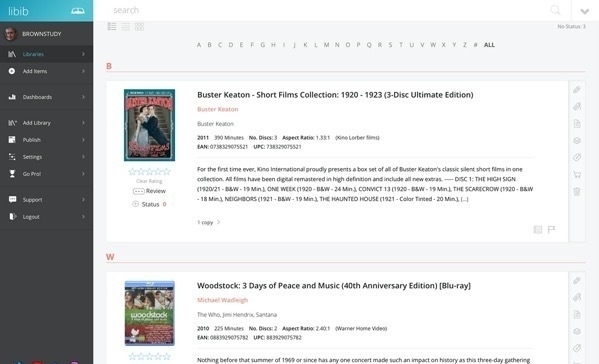 _One of the nice touches of the Libib interface is the ability to view your library's items in a plain list view, as large icons, or a hybrid view, as shown here, with full description and metadata on the DVDs._