I did the Power Red.

I did the Power Red.
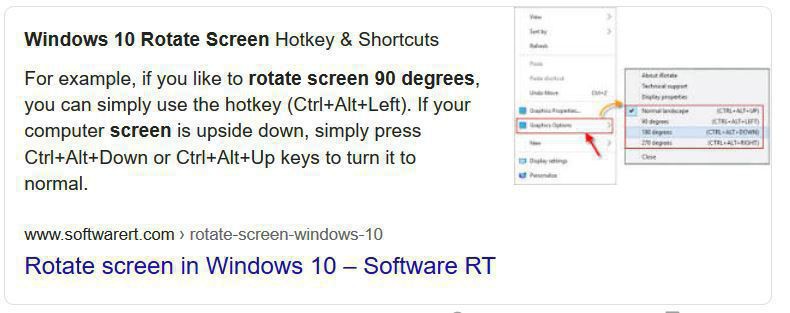
Discovered a most oddball Windows 10 feature through finger fumbling on the keyboard. I cannot conjure a reason to rotate a display by 90 degrees or upside down, but then I’m a words-and-text boy; when my Word document went all goolally, I nearly had a cow.
Flyer posted at our co-op’s community bulletin board.

Sent the second of my bimonthly letters last weekend. In this installment: snowflakes, Lenten Challenges, end of life concerns, aging workers, and movies we’ve seen.
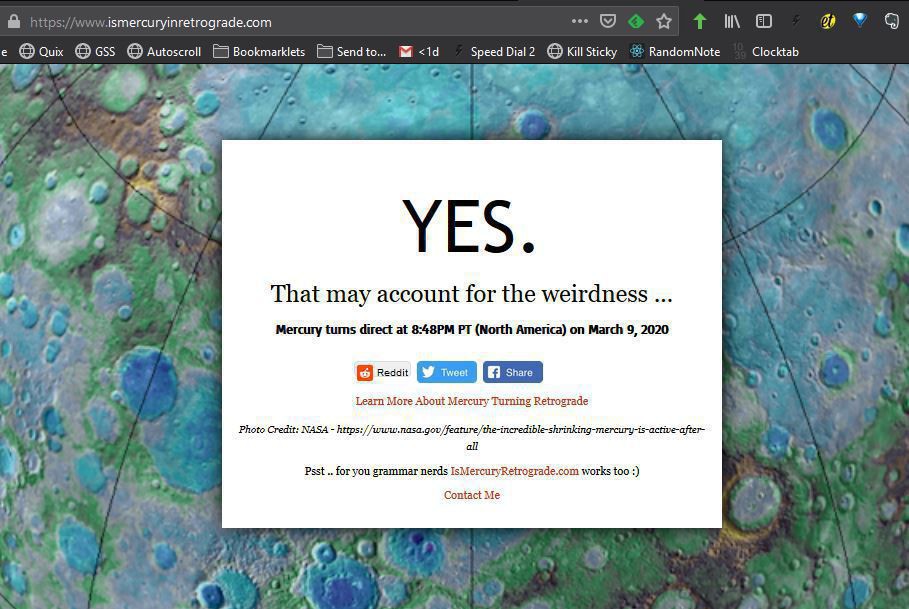
Well, that explains it…
Because since when has liking Doctor Who been a prerequisite of being a Doctor Who fan?
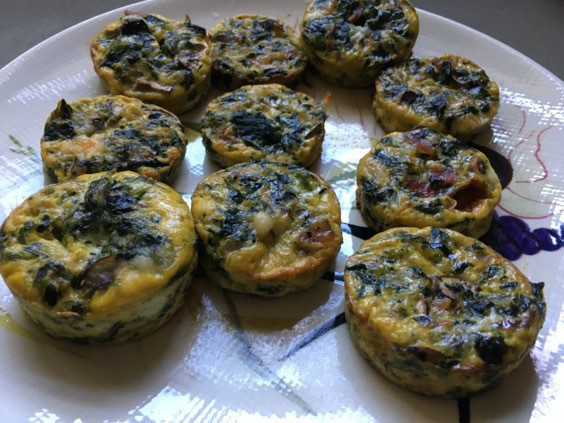
Used the new silicone muffin pan Liz bought me for Xmas to make some quiche muffins (although we’re trying out different names – “protein pucks”?). I used my standard spinach mushroom bacon recipe, which made two pans of “puckelets” (no).
The nice bit about the silicon muffin tin – no greasing of the cups needed nor paper cups.
Froze most of them. We have found the best way to reheat them is to let them thaw at room temperature, microwave for 40 seconds, and they taste great.
My latest newsletter to friends and family went out this past Monday. This particular issue I dwelled on three information tools I used or created in the previous week. Also: contronyms!
While spending a few evenings this week diagnosing the problem with Disk Utility not erasing my external hard disk, I also searched the Carbon Copy Cloner site for clues.
During those latter searches, I found this MacMost video on why cloning is a poor choice as a backup strategy.
Gary’s point is a valid one: cloning your disk should not be one’s sole backup strategy. Although CCC can certainly do incremental backups, that is not its strength. He outlines three cases where a cloned drive can be helpful, but by and large he is against the use of cloned drives. He prefers a mix of Time Machine backups and cloud backups.
Gary fields lots of offended comments on that page from folks who don’t share his faith in Time Machine backups (they do fail and act capriciously; it’s happened to me). Anecdotes are shared on how a cloned hard drive enabled folks to recover from disk failures in less time than using Time Machine.
I’ve always tried to be a good little boy when it comes to computer backups. I have:
Up to now, I’ve not thought of this as overkill. My iMac is the center of my computing universe; I sync my iPad and iPhone regularly. Although my wife has an iPad, she only syncs it to the iMac twice a year: to put on or take off her Christmas music.
Still, Gary’s strong statements in the comments that cloned drives really aren’t needed made me review my choices. I can only think of two times when I’ve needed backups:
A cloned drive would have been nice, I suppose, but wasn’t really necessary in these cases, I think. Time Machine worked just fine, as I recall.
As of now, I’m OK with my backup strategy. I do have things backed up to CCC, such as iMovie projects, that I have not bothered to upload to Dropbox or Backblaze; they’re simply too huge to push through our tiny internet connection. I view my cloned hard drive as insurance, something I carry while hoping I never need it. I am happy now to go back to ignoring my automated backups as they chatter in the background.
Carbon Copy Cloner’s weekly backup task broke after my iMac’s upgrade to Catalina recently. I followed these instructions from CCC to reformat the external drive as APFS but Disk Utility kept crapping out with error “-69877: couldn’t open device.”
I tried different compatible formats but Disk Utility resolutely refused to reformat the disk.
Many searches for -69877 solutions yielded people who recorded numerous reformats, reinstalls, etc. I held off taking the complicated solutions seriously, though; I particularly ignored the worst-case solution: junk the disk. I figured if I kept looking, some stray sentence somewhere would ring my bell.
And it did. In one of many forum discussions about -69877 on the Apple site, I found this gem:
Sometimes when Disk Utility gets stuck like this for me, I choose a PC format to initialize the HDD then reformat with the Mac settings. So after you give it a name, click the first pull-down menu and select MS-DOS (FAT), then click the second pull-down menu and select Master Boot Record. Go ahead with the reformat. When it completes, just re-format again with the Mac settings.
I reformatted the drive as MS-DOS (FAT) and Disk Utility erased the entire drive. Success!
I was then able to follow the CCC directions to select APFS and create the CCC partition and an extra partition I want to use for storing large files.