Posts in "Tech"

Libib for cataloging books, DVDs, and CDs

As part of my downsizing, I’ve looked at the shelves of graphic novels and wondered how I could quickly create a list of them. In case I want to sell them or even give them away, I’d like to be able to hand over a list of what I have so people know what they’re getting, or so a buyer can tell me what they’re most interested in.

Of course, I thought, “There’s an app for that.”

I’m not sure why I spent hours today searching for and trying out apps to scan a book or DVD’s barcode to generate a list quickly and easily. But my intuition said to do it, so I did.

All I wanted was…

All I wanted was an app that I could use to scan the barcodes of books and DVDs, match those barcodes to book and DVD names, and then export the list. And ideally, they’d be easy to use without me puzzling over settings or help pages. (No fear there: only one or two of these apps even had support pages or FAQs, however skimpy.)

My first path was incorrect: I searched for iOS-based barcode scanners and this created a whole morning and afternoon spent reading app reviews, downloading and testing a few apps, and generally just being displeased with the whole exercise. These tend to be consumer-level price-finding apps. The apps tend to be adware, or buggy, or just generally difficult to work with.

After stepping away for a bit, I hit on the second path: look for book cataloging apps, or cataloging apps that could do books and DVDs – and why not CDs, while I’m at it.

After more Googling, I found Libib, which was the answer to my dreams.

Libib did all I wanted…

Libib has two components: 1) a mobile app that can scan barcodes and 2) a website where those entries can be tagged, metadata entered or edited, etc. For personal use, the app and site are free at Standard level; if you’re a small library, there is a Pro level with more admin features.

Libib can show you the entire contents of all the libraries you have created, or only the library you select. Libib offers four types of libraries you can create: Books, Movies, Video Games, and Music. I assume that each library type is associated with its own set of catalogs or custom searches, which improves the speed of the barcode matching.

On the web site, I created two libraries: Graphic Novels and DVDs. I downloaded and logged in to the iOS app on my iPhone. And then I picked a few DVDs for testing.

My tests worked great. The iOS app read barcodes and returned product info as fast as the camera took the picture – and MUCH faster than any of the barcode-scanning apps. Refreshing the web site showed those entries on my DVDs Library page. (That may not sound like a big deal to you, but so many of the apps I tried today lacked such basic competence in design and function that I almost cried with joy to find something simple that simply WORKED AS EXPECTED.)

I eventually found the Export capability: from your account page, select Settings, select the Libraries tab, select Export Library (.csv), and then the library you want to export. I was impressed by the amount of metadata included with the DVDs; and it’s probably possible to customize the metadata further.

What’s to love?

What I love about Libib – the site and the app – is the speed, the cleanness of design, proper Support pages so I can troubleshoot problems myself, and its own general soundness and sanity.

There are social functions that I don’t care at all about and don’t see myself using, but that’s fine. Libib does what I want, as I expect it to, and I am now – at long last – looking forward to cleaning out those shelves of graphic novels.
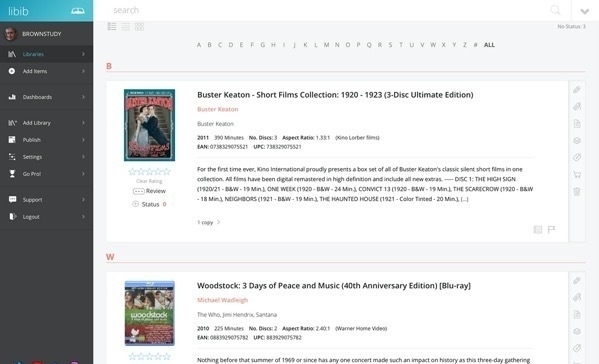
Libib _One of the nice touches of the Libib interface is the ability to view your library's items in a plain list view, as large icons, or a hybrid view, as shown here, with full description and metadata on the DVDs._
Clone wars

While spending a few evenings this week diagnosing the problem with Disk Utility not erasing my external hard disk, I also searched the Carbon Copy Cloner site for clues.

During those latter searches, I found this MacMost video on why cloning is a poor choice as a backup strategy.

Gary’s point is a valid one: cloning your disk should not be one’s sole backup strategy. Although CCC can certainly do incremental backups, that is not its strength. He outlines three cases where a cloned drive can be helpful, but by and large he is against the use of cloned drives. He prefers a mix of Time Machine backups and cloud backups.

Gary fields lots of offended comments on that page from folks who don’t share his faith in Time Machine backups (they do fail and act capriciously; it’s happened to me). Anecdotes are shared on how a cloned hard drive enabled folks to recover from disk failures in less time than using Time Machine.

I’ve always tried to be a good little boy when it comes to computer backups. I have:

  • Time Capsule backing up the whole drive
  • Backblaze backing up our individual user directories
  • Carbon Copy Cloner’s weekly incremental backup in case of disk failure
  • Dropbox backing up my user directory, photos, music, etc.

Up to now, I’ve not thought of this as overkill. My iMac is the center of my computing universe; I sync my iPad and iPhone regularly. Although my wife has an iPad, she only syncs it to the iMac twice a year: to put on or take off her Christmas music.

Still, Gary’s strong statements in the comments that cloned drives really aren’t needed made me review my choices. I can only think of two times when I’ve needed backups:

  1. I upgraded the hard drive on my old MacBook. I used Time Machine to basically restore my old files and setups to the new disk.
  2. My MacBook and Liz’s laptop were stolen in a burglary. At the time, we used Crashplan and Dropbox to restore our key documents. When I bought the iMac a little while later, I can’t remember if I restored the old Time Machine backups or just started fresh; probably the latter.

A cloned drive would have been nice, I suppose, but wasn’t really necessary in these cases, I think. Time Machine worked just fine, as I recall.

As of now, I’m OK with my backup strategy. I do have things backed up to CCC, such as iMovie projects, that I have not bothered to upload to Dropbox or Backblaze; they’re simply too huge to push through our tiny internet connection. I view my cloned hard drive as insurance, something I carry while hoping I never need it. I am happy now to go back to ignoring my automated backups as they chatter in the background.

Fixing Disk Utility error -69877

Carbon Copy Cloner’s weekly backup task broke after my iMac’s upgrade to Catalina recently. I followed these instructions from CCC to reformat the external drive as APFS but Disk Utility kept crapping out with error “-69877: couldn’t open device.”

I tried different compatible formats but Disk Utility resolutely refused to reformat the disk.

Many searches for -69877 solutions yielded people who recorded numerous reformats, reinstalls, etc. I held off taking the complicated solutions seriously, though; I particularly ignored the worst-case solution: junk the disk. I figured if I kept looking, some stray sentence somewhere would ring my bell.

And it did. In one of many forum discussions about -69877 on the Apple site, I found this gem:

Sometimes when Disk Utility gets stuck like this for me, I choose a PC format to initialize the HDD then reformat with the Mac settings. So after you give it a name, click the first pull-down menu and select MS-DOS (FAT), then click the second pull-down menu and select Master Boot Record. Go ahead with the reformat. When it completes, just re-format again with the Mac settings.

I reformatted the drive as MS-DOS (FAT) and Disk Utility erased the entire drive. Success!

I was then able to follow the CCC directions to select APFS and create the CCC partition and an extra partition I want to use for storing large files.

Syncing third-party calendars from Google to iOS

I center my email and calendar activities around Gmail and Google Calendar. They feed the Mail and Calendar programs and apps I use on my iMac, iPhone, and iPad.

I’ve encountered the following issue a few times: a new calendar I’ve added or imported into Google Calendar does not appear on my iOS/iPadOS calendars.

Most recently, it was importing the ICS link from my workplace’s Outlook Web app into GCal. I could see my workplace schedule on my Google Calendar but not on my other devices.

Troubleshooting this was maddening. I’ve selected the right calendars in Google, the calendar connections to my iMac and iDevices look fine – why am I not seeing what I KNOW should be there?

I found the answer in this 2015 blog post from Online Tech Tips. The writer correctly pinpoints the problem to third-party calendars that show up under Other calendars.

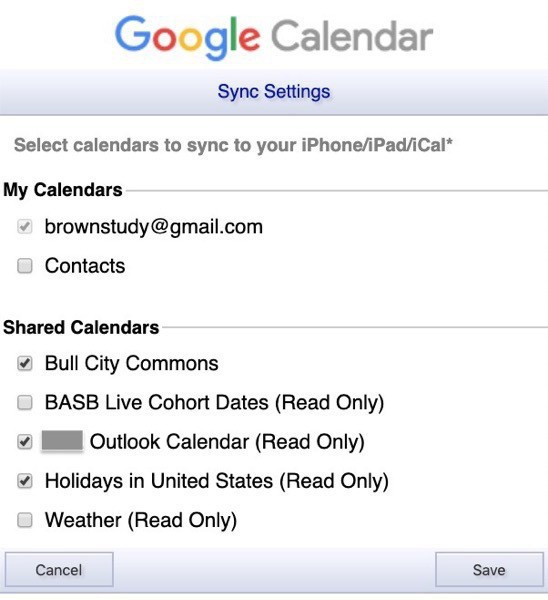
And he identifies the solution – a specific link that “for some ridiculous reason…does not appear anywhere on any page while in Google Calendar…However, this page is key to getting those other calendars to show up in the Apple calendar app.”:

[https://calendar.google.com/calendar/syncselect](https://calendar.google.com/calendar/syncselect)

Google calendar sync

And indeed – my workplace calendar was unselected in the list. Ticking the box, clicking Save, and checking my iPhone later showed that the new calendar was now there.

File this under “yet another 20-second solution that took two hours to find.”

I needed a keyboard shortcut in Evernote to duplicate a note. I was about to load Keyboard Maestro to do that when I remembered the Keyboard System Preference panel. Presto! So easy to forget the built-in tools sometimes.

Forbes's "Should You Upgrade iOS" column

If one lesson can be learnt by all this it is to stop blindly leaping to every new iOS release.

Gordon Kelly is a frequent critic of Apple so I have always taken his iOS update reports with a grain or three of salt. But with the recent 13.x releases, I now wish I’d listened to him and held fast to iOS 12.

My SE, which usually held a good battery charge all day, drains down to 5% within an hour simply sitting on my desk.

My SE is 2+ years old so, on the off-chance, I’m having a new battery installed this week. If I still see a drain, I’ll know it’s iOS.

I have turned off automatic updates and am holding fast, for better and worse, at 13.2.1.

Update, 2019-11-13: Took my iPhone to an Apple certified service shop. The repair guy hooked my phone up to his diagnostic computer and it said the battery had gone through 600 recharge cycles; Apple says the battery has a lifetime of 500 cycles. So yeah, the battery was shot. The Battery Health setting is an OK criteria (mine was at 88%) but not the decisive one; it’s the number of cycles that is decisive. But the user cannot see the number of recharge cycles a battery has gone through, only a technician. Charging the phone up now; hoping for good times ahead.

From Overcast to Castro

Overcast’s Upload Files function was removed with the most recent update to iOS 13, I think; the option is disabled in its settings and the uploads page is gone from the website. I could not find any info about this change online. What annoyed me was that this capability was removed while I was in the middle of listening to an uploaded audiobook file.

So am reluctantly moving my podcast listening to Castro, which has most of the functionality I use plus lets me add audio files more easily.

I will miss the custom playlists feature of Overcast; I divvy all my Sleep With Me and ambient music podcasts into their own playlists, for example.

I was so comfortable in my technological rut! But am making the best of it. I’ve stopped most all the feeds in Overcast and am starting fresh in Castro. I have a huge backlog of audiofiles in Overcast anyway, so maybe I can whittle them down while keeping up with my current diet of audio snack foods.

Kill Sticky bookmarklet

A bookmarklet that always finds its way to all of my browser toolbars is [Alisdair McDiarmid’s Kill sticky headers bookmarklet] (https://alisdair.mcdiarmid.org/kill-sticky-headers/). For web sites that have header or footer elements that obscure part of what I’m trying to read, clicking this bookmarklet instantly clears the page display. And if you ever need those elements back — for a menu item, say — then just refresh the page.